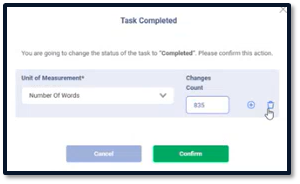
Newswires 2.0
Standard Operating Procedure: Newswires
7.20.2026
Department:
- EDGAR
- BILLING
Purpose:
To establish guidelines for the creation of press releases in Globe Newswire, their capture in DMS, and billing review.
Definitions:
- Full-service: Globe Newswire will process the newswire.
- Self-service: The processing of a newswire from EA’s end.
Globe Newswire Procedures:
Selecting a Company Account
- Navigate to the landing page on the Globe Newswire IR Hub: https://distribute.notified.com/ng/home
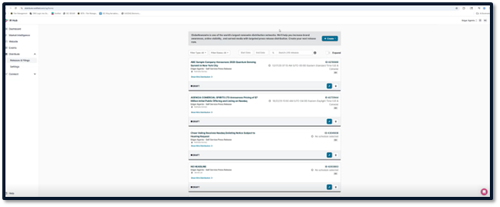
- Click on the drop-down in the top right-hand corner to select the company for which you are creating a press release
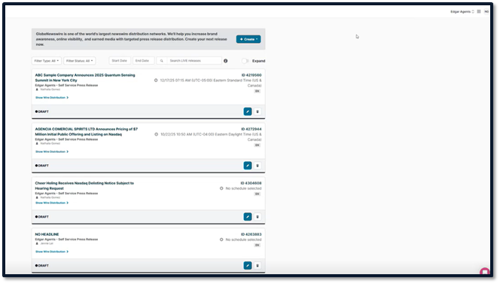
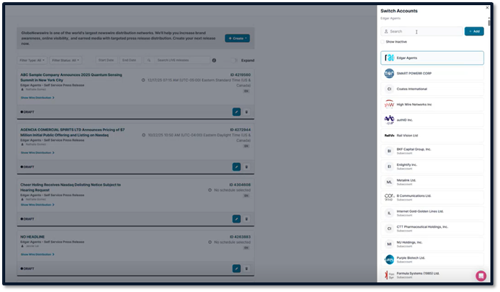
- Select the company name from populated companies or search for a company in the search bar.
Creating a New Account
- If a company does not exist, a new one must be created.
- If the company is public, we MUST file for them in order to process their newswires. If they do not currently file with us, send below email to receive filing and newswire.
- Email template to use: “At this time we only offer our premium Press Release services to EA active EDGAR clients. If there is an 8-K accompanied with the press release you would like to disseminate, we can offer a flat bundle package for $850 that includes the 8-K, Press Release and MarketWatch (if necessary). To take advantage of this offer immediately, please send your 8-K draft, press release draft, and filing codes. Thank you."
- If the company is private, we can process their newswire without a filing.
- Email template to use: “At this time we only offer our premium Press Release services to EA active EDGAR clients. If there is an 8-K accompanied with the press release you would like to disseminate, we can offer a flat bundle package for $850 that includes the 8-K, Press Release and MarketWatch (if necessary). To take advantage of this offer immediately, please send your 8-K draft, press release draft, and filing codes. Thank you."
- The following information should be requested to and provided by the company.
- Account Name
- City, State/Province, Zip/Postal Code, Country
- Website,
- Customer Type
- Industry
- ISIN
- Ticker(s)
- Ensure you are on the EdgarAgents account.
- To create an account, click “ + Add.”
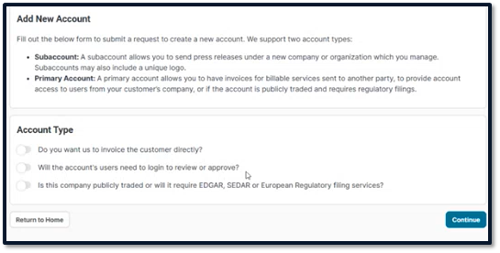
- Do not toggle any Account Types.
- Click “Continue.”
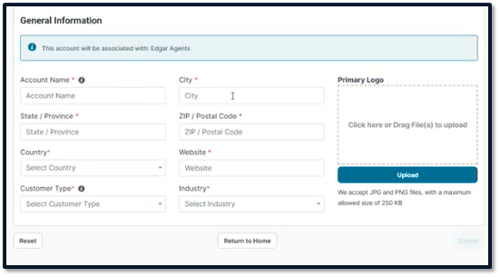
- Fill in Account Name, City, State/Province, Zip/Postal Code, Country, Website, Customer Type, and Industry.
NOTE: If the company does not have a website, use the SEC profile. If there is no zip code, input 00000.
-
- Customer Types: Public, Private, Unknown, Government, Non-profit
- Industry is based on the SIC Code (if available), or is determined by reading the “About Me” section on the press release.
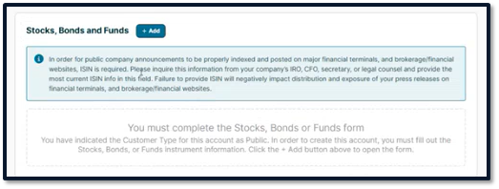
- If a company is Public, the option to add Stocks, Bonds, and Funds will populate. Click “+ Add” to do so.
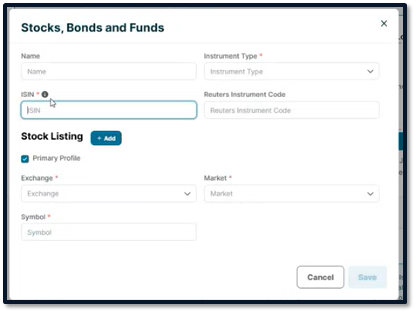
- Add the ISIN (International Securities Identification Number)
- Instrument Type: Stock
- Ask the Company to confirm the Exchange and Markets. Most common are NASDAQ Capital Market, Global Market, and NYSE.
- Add Symbol.
- Click “Save.”
- Once all information is filled in, click “Create” to create the account.
Creating a Press Release
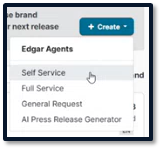
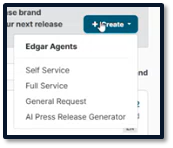
- To create a press release, click “+ Create.” Select Self Service or Full Service.
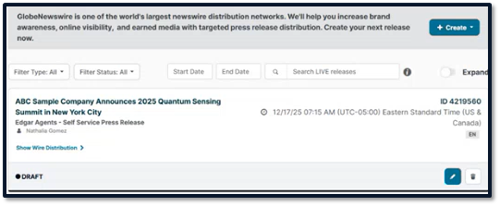
Self Service
- Self service jobs are jobs processed by EA operators from start to finish.
- Select Self Service from the “+ Create” dropdown.
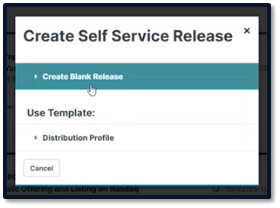
- Select “Create Blank Release.”
- Search USA National (self service) in the search bar to populate it as a Wire Circuit.
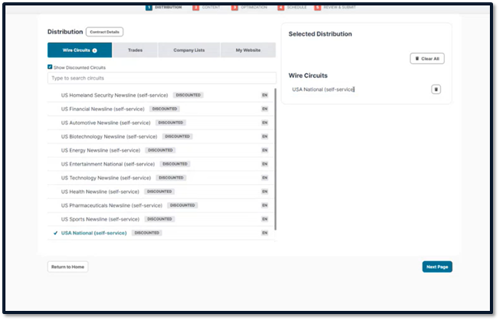
- Select Trades based on press release’s title, introduction paragraph, company type or the company’s “About Me” section.
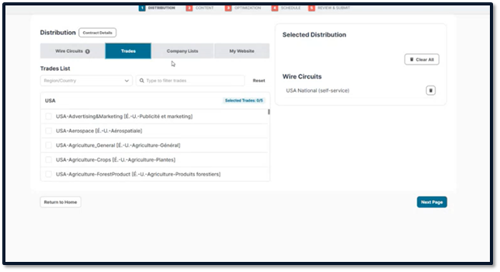
- The Company List is used only if a client has specific emails they want to send to.
- My Website is used only if a client wants the press release to post to their website.
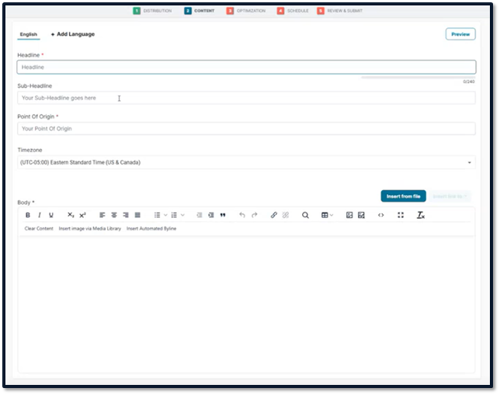
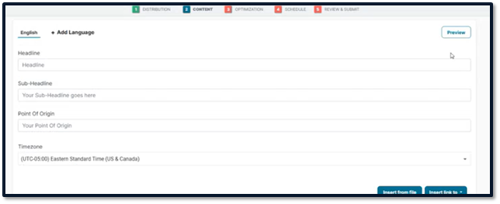
- Add the content of the press release on the Content page.
- Add Headline and Sub-Headline if applicable.
- Point of Origin: country or state used for press release.
- Add the body text of the press release.
- Insert byline
- Add the contact information to the body of the press release.
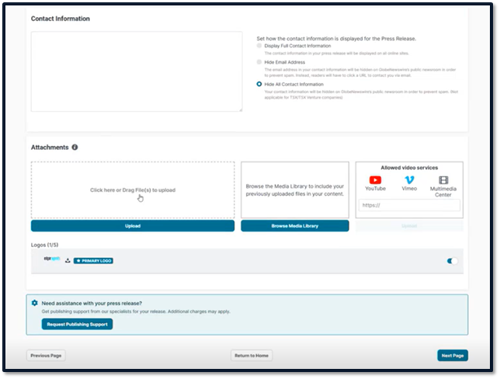
NOTE: If the client does not want their contact information listed publicly in the press release, add their contact information under Contact Information, and click “Hide Email Address” or “Hide All Contact Information.” This information may still be available through other outlets, but not through Globe Newswire.
- Any images or attachments should be added under Attachments.
- Add a title and caption for each image.
- Request Publish Support if additional support is needed from Globe Newswire.
- Additional tickers to be indexed should be submitted here
NOTE: Submitting a request for publish support will automatically schedule the newswire for release.
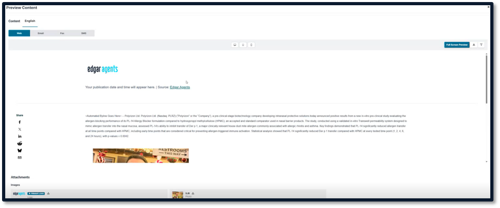
- Click “Preview” in the top right corner to view the proof of the press release.
- Review the proof of the press release.
- Download a PDF of the proof and save it as a Word file to provide to the client.
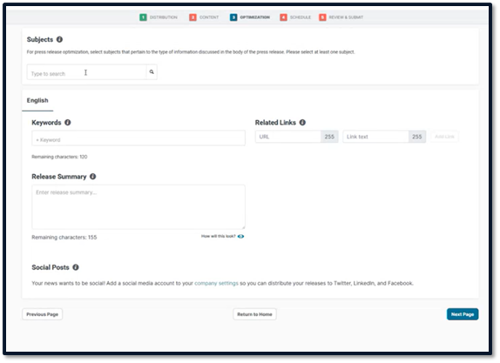
- Navigate to the Optimization page and select subjects that pertain to the type of information discussed in the body of the press release
- Add keywords from the Subjects dropdown.
- Add Keywords if provided by the client.
- Include a Summary if requested by the client.
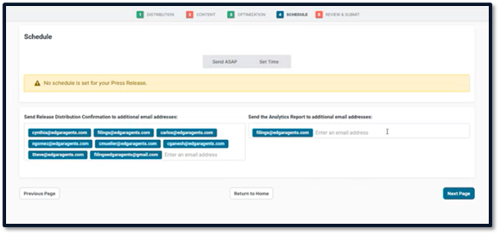
- Navigate to the Schedule page to send the press release.
- Select “Send ASAP” for immediate release.
- Select “Set Time” to schedule release for a later time.
Navigate to the Review & Submit page.
- Click “Calculate Pricing” once the press release has been reviewed.
NOTE: If the Self-Service USA National price is more than $219.51, check with the Accounting team prior to releasing.
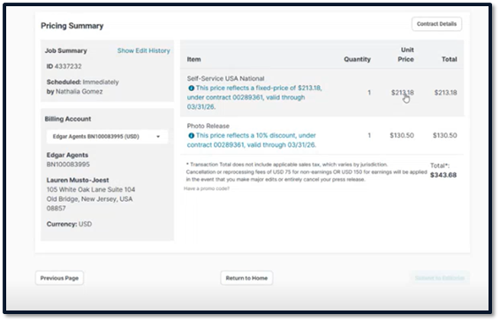
Other Distributions
NOTE: Clients can request a different Wire Circuit based on their needs. USA National (self service) is the standard Wire Circuit used. If the client requires a different Wire Circuit (ex: only in Europe or Canada), follow the below steps.
- Choose the circuit in Globe Newswire.
- View the cost.
- This pricing guide can be utilized to quote the client when sales and accounting departments are unavailable. Newswire Pricing Guide
- We are never to quote the client our cost; there must always be a markup on the cost so we are making a profit.
- Anything that costs higher than $2,000 needs to be quoted by Sales or Accounting.
- Send a screenshot of cost to Lauren/Elaina; they will advise price to quote client
- Our standard newswire rates for new clients are as follows:
- $525 for Self Service – USA National
- $750 for Earnings Release
Full Service
- From the landing page, select the client you will be working on and click “Create” to create a new press release.
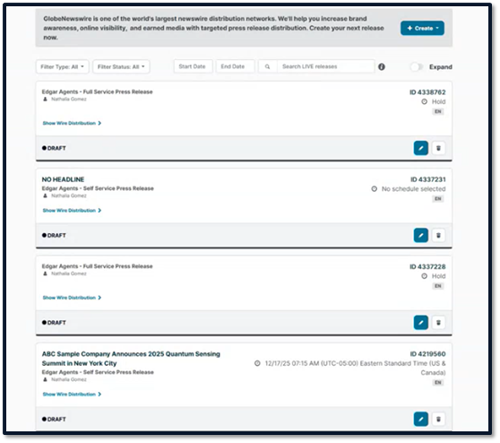
- Select Full Service
- Select New York Metro as the wire circuit for full-service press releases.
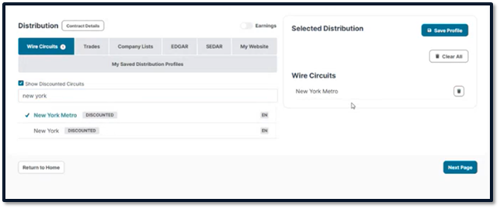
- Select trades applicable to the company.
- Toggle on the “Earnings” toggle if the press release is an Earnings Release.
- Upload the document the client provided, as well as pictures and logo if needed.
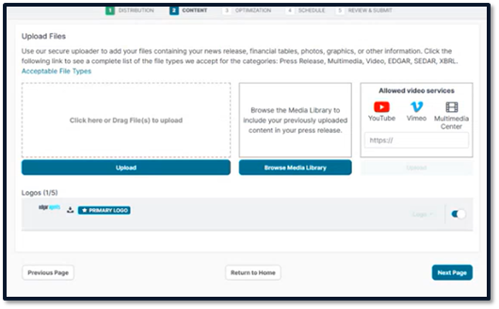
- Input keywords provided by client.
- Select contact information display.
NOTE: Hiding the client’s contact information is only applicable on Globe Newswire. All other platforms can see contact information.
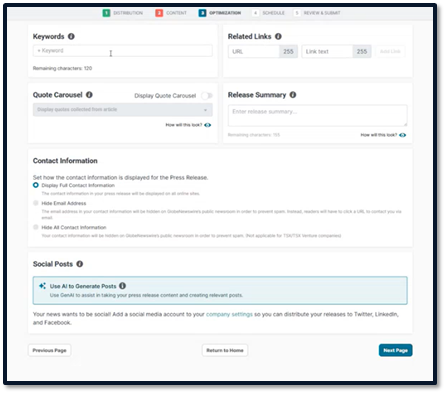
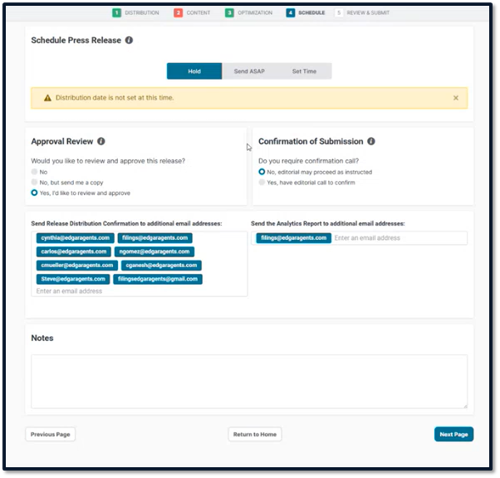
- Navigate to the Schedule Press Release page to send the press release to editorial for processing.
- Under Approval Review, always select, “Yes, I’d like to review and approve.”
- Under Confirmation of Submission, always select, “No, editorial may process as instructed.”
- Ensure filings@edgargaents.com is included in the Release Distribution Confirmation and the Analytics Report.
- Add any additional notes if needed.
- Globe Newswire will call to approve details of the press release.
NOTE: USA National should only be selected for self-service, NOT full-service.
DMS Capture:
Create Job – From the List of Jobs screen
- Click “Add New Job” button and fill out necessary information.
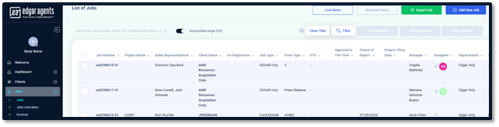
- Client name.
- Job type: Press release.
- Form type: Press release.
- Choose department: EDGAR Only.
Create Job – From Email
- On top of the opened email, click the Create Job button.
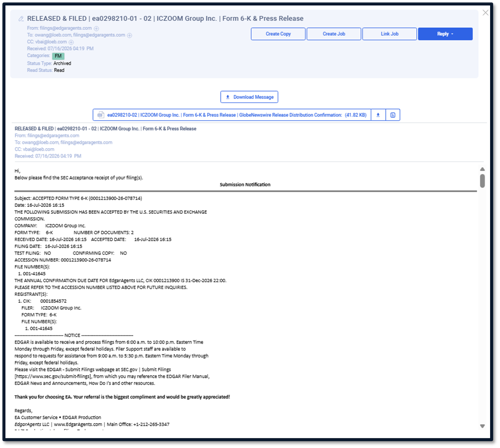
- Click “Next.”
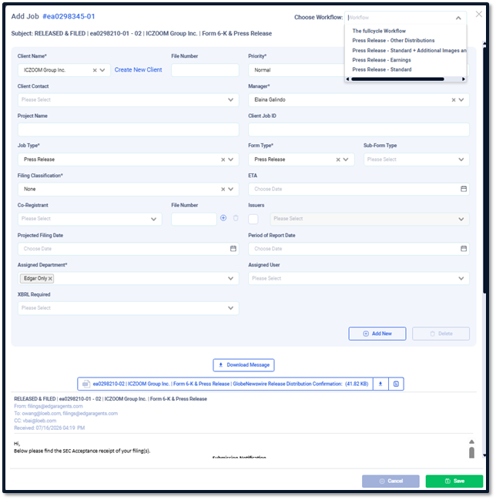
- Fill out necessary information:
- Client name.
- Job type: Press release.
- Form type: Press release.
- Choose department: EDGAR Only.
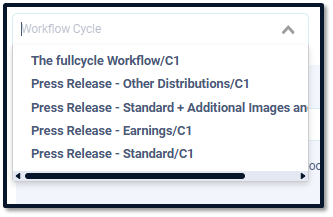
- Then, select the correct “Press Release” workflow.
- Press Release – Standard
- Press Release – Earnings
- Press Release – Other Distributions
- Press Release – Standard + Additional Images and or logo
- Click “Save.”
- Once all job information is input and the job is ready to begin, select “Start” under the Job Status.
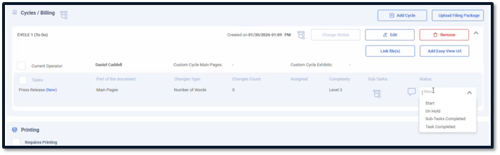
- Any additional Tasks can be added into the existing cycle. The tasks are:
- Press Release - Additional Logo
- Press Release - Other Distribution
- Earnings Release
- Image on Press Release
- Market Watch Upload
- Click “Save."
Release Number
Production will insert the Release Number (Globe Newswire ID Number) in the project name.
- Navigate to Globe Newswire and select a company.
- The ID Number can be found at the top right corner of the press release.
- Click “View Content” to see the circuits used and the Pricing Summary.
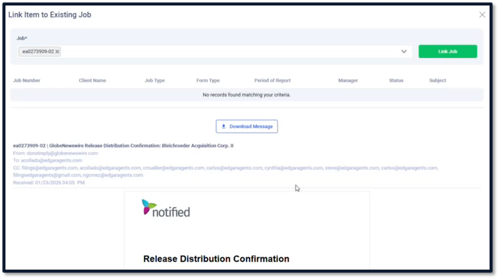
- Link the Globe Newswire confirmation email to the existing job.
- Set the job to “Billing Review” once the press release is released.
Billing Review:
The Billing Team opens a newswire job in Billing Review status in DMS.
Title/Cross Time
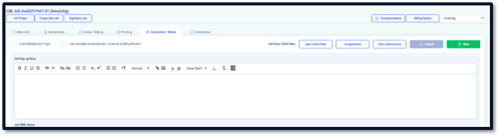
- Click the Comments/Notes tab and scroll down to the Title/Cross Time field.
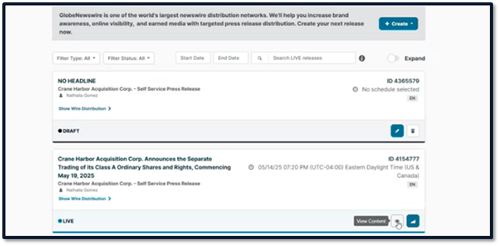
- Open the Globe Newswire website. Locate the newswire via the company name and ID Number from the Project Name field in DMS.
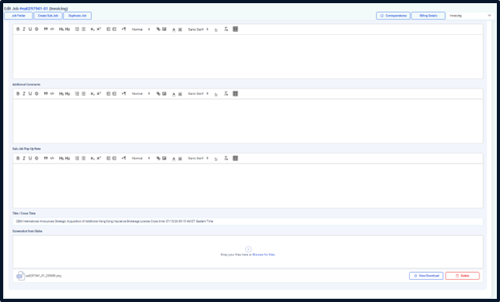
- Copy the Title and Cross Time from the Globe Newswire website and paste into the Title/Cross Time field in DMS.

- Click “Save.”
Pricing Summary
- The Pricing Summary must be recorded in DMS.
- Click “View Content” on the Newswire.
- Scroll down to Pricing Summary.
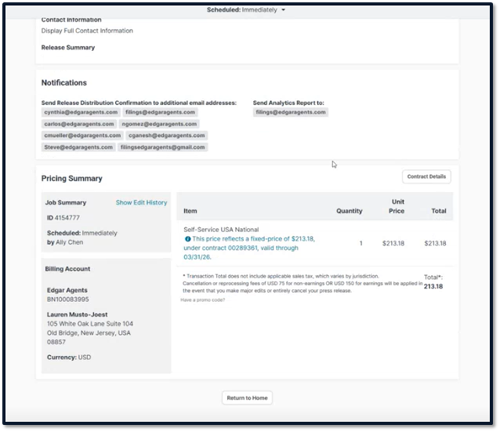
- Take a screenshot via Snipping Tool.
- Paste into Screenshot from Globe section in DMS on Comments/Notes tab.

- Click “Save.”
Word Count
- Add the press release word count to the cycle with the Press Release task.
- The word count can only be added upon confirmation by Globe Newswire. Globe Newswire will send a confirmation email that can be accessed from the Production Inbox.