Wiki menu
EA34 Handbook
Standard Operating Procedure:
EA34/ISV Comprehensive Document
Process Overview
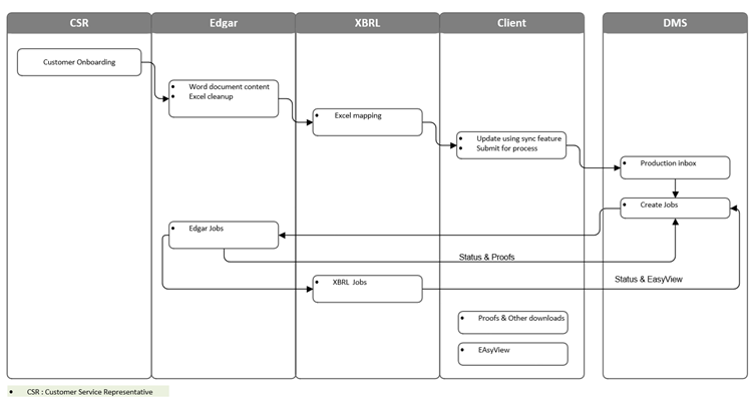
- Onboarding in ISV
- Word document content managed by Edgar team
- Excel cleanup managed by Edgar team
- Excel mapping to Word done by XBRL/Edgar team
- Handover to client
- client will do updates by using the sync feature
- client will submit from ISV to DMS for further processing
- Submitted file will be available in DMS production inbox
- Edgar and XBRL team will be assigned jobs to work (actual production work)
- Edgar and XBRL team will be assigned jobs to work (actual production work)
- Completed html, pdf proof or EAsyView link will be uploaded in DMS by the Edgar and XBRL teams.
- Proofs and EV link will be available in ISV for the client to download from the dashboard.
Recommended way to open the document in One drive and access the project
- Login to Microsoft One drive with your credentials
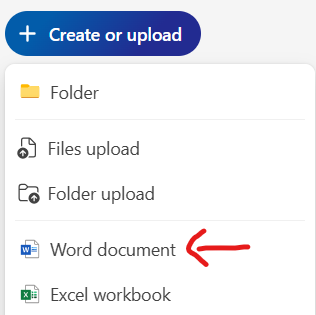
- Click on Create or Upload from the one drive home page and click on “Word Document” to open a blank Word file first.
- Load the plugin and login to EA34.
- Navigate to Drive to access your file.
- Click on the file for it to open in a new tab where you can start working on it.
Potential Problems with Reasons/Solution
- Each sheet in an excel can have only 1 table. It is not possible for one sheet to have multiple tables.
Reason: To preserve the mapping/syncing when additional rows are inserted into the table, we should have only 1 table per sheet. If multiple tables are present in a single sheet, the mapping will break if the table is dynamic. - “Reload” error comes up while working on the document during onboarding.
Reason: It is a Microsoft Office error.
Solution: Split the document in the area where the issue occurs and perform mapping/syncing. All split documents should have prefix as “1”, “2”, “3” etc. in sequence as the file name. Submit will not work if file naming is not correct.
In these cases, notify the client on the splits. - Mapped value is not reflected when Word and Excel are synced.
Reason: If excel contains the value split in 2 cells which is available in one table cell in Word and if mapping is done this way, mapped value will not be reflected properly in Word document.
Solution: The cells in Excel must be merged to a single cell before mapping it to the Word Document. One cell in Excel must be mapped with one table cell in Word for successful syncing of values. This Excel Cleanup must be done by the Edgar team to ensure smooth onboarding. - After uploading Excel from right side panel for the under the Excel mapping feature, some values in the Excel are not rendering properly.
Reason: There may be unnecessary cell merges in Excel.
Solution: Undo the unnecessary cell merges around the values which did not render in the excel, save the Excel and upload the Excel again to the product. - After mapping and syncing of values, the font is changed.
Reason: There may be unnecessary cell merges in Excel.
Solution: Undo the unnecessary cell merges in the Excel, upload it to the product again and map/sync the values.
Additional Information
- During mapping, new row added in the Excel will get updated in the Word document and automatically mapped if manual mapping is done for the table.
- During mapping, new row added in the Excel will not get updated in the word document if that table is mapped using the "auto table map" feature. In this case, we must additionally include the new row in the Word Document as well and map it with the Excel.
FAQ’s
- How do I submit my updated file to EA for processing?
Ans: Navigate to the “Submit” menu, fill in the required details to submit your file to us. - Where do I see the current status of my submitted file?
Ans: Navigate to your file from the “Dashboard” menu. Click on it to open the details in a bottom panel. The number of jobs along with other details will be displayed there. Click on the number of jobs to open a pop-up with the status of the job. - How do I update the values in the document?
Ans: For numbers, update the values in the Excel, upload it to the product by navigating to “Excel Mapping” under “Table Mapping” menu. Browse and upload your updated Excel file. Click on “Sync Current Sheet” or “Sync All” as required.
For content, you can directly update it in the Word document. - How do I update all the values from all tables in the Excel to the Word document?
Ans: Browse and upload your updated Excel file. Click on “Sync All” for all the tables in the Excel to get update to your Word file. - How do I download the processed Edgar file?
Ans: From the dashboard, navigate to your file and click on it. From the bottom panel, click on the number of jobs to open a pop-up. The download icon will appear next to the job if the completed file is available for download. - How do I review my iXBRL document?
Ans: From the dashboard, navigate to your file and click on it. From the bottom panel, click on the number of jobs to open a pop-up. You will see an “Eye” icon which will be available if the file is ready for review. Click on it to redirect to EAsyView’s login page where you can login and review your iXBRL document. - Who can I contact incase of any queries?
Ans: You can contact our support team by navigating to “Support”.