Newswires
Standard Operating Procedure:
Newswires
1.30.2026
Department:
- EDGAR
Purpose:
To establish guidelines for the creation of press releases in Globe Newswire and their capture in DMS.
Definitions:
-
Full-service: Global Newswire will process the newswire.
-
ISIN: International Securities Identification Number
-
Self-service: The processing of a newswire from EA’s end.
Globe Newswire Procedures:
Selecting and Creating an Account
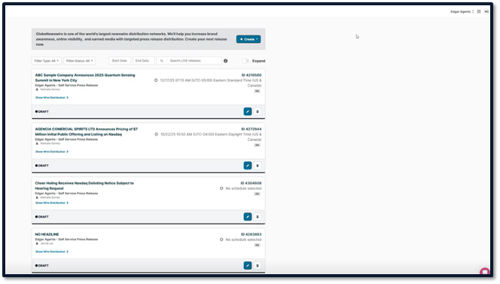
Navigate to the landing page on the Globe Newswire IR Hub.
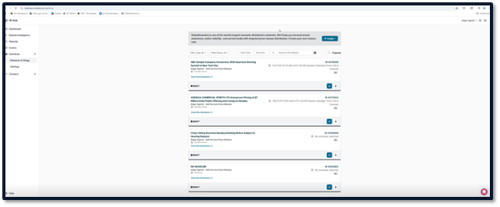
Click on the drop-down in the top right-hand corner to select the company for which you are creating a press release.
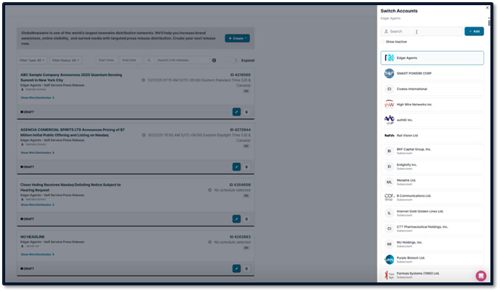
Select company name from populated companies, or search for a company in the search bar.
- To create an account, click “ + Add.”
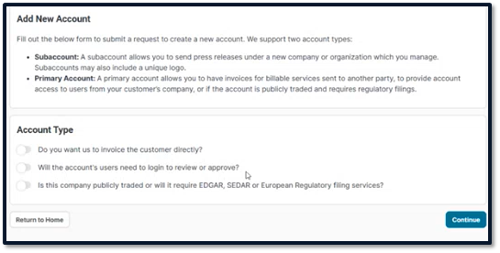
- Do not toggle any Account Types.
- Click “Continue.”
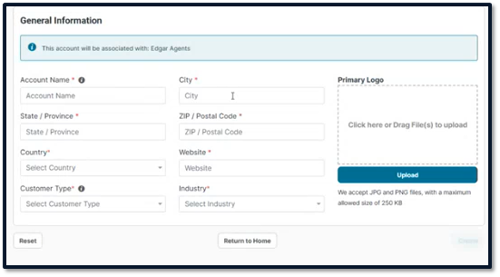
- Fill in Account Name, City, State/Province, Zip/Postal Code, Country, Website, Customer Type, and Industry.
NOTE: If the company does not have a website, use the SEC profile. If there is no zip code, input 00000.
-
- Customer Types: Public, Private, Unknown, Government, Non-profit
- Industry is based on the SIC Code (if available), or is determined by reading the “About Me” section on the press release.
- If a company is Public, you will have the option to add Stocks, Bonds, and Funds. Click “+ Add” to do so.
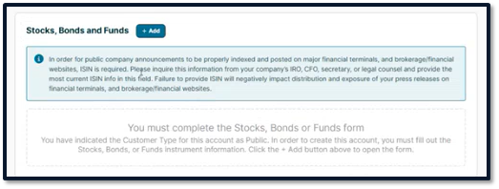
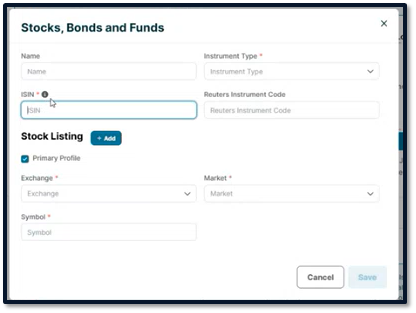
- Add the ISIN.
- Instrument Type: Stock
- Ask Company to confirm the Exchange and Markets. Most common are NASDAQ Capital Market, Global Market, and NYSE.
- Add Symbol.
- Click “Save.”
-
- Once all information is filled, click “Create” to create the account.
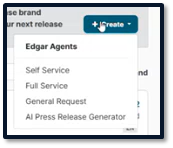
To create a press release, click “+ Create.” Select Self Service or Full Service.
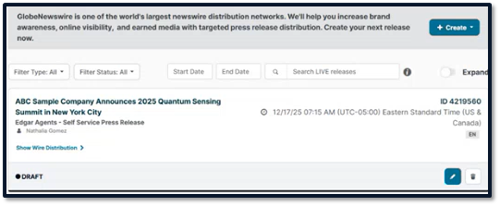
Self Service
Self service jobs are jobs that EA processes from start to finish.
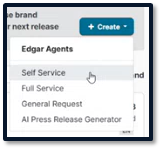
- Select Self Service from the “+ Create” dropdown.
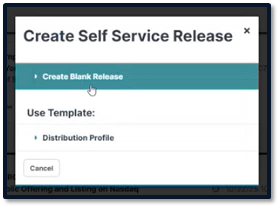
- Select “Create Blank Press Release.”
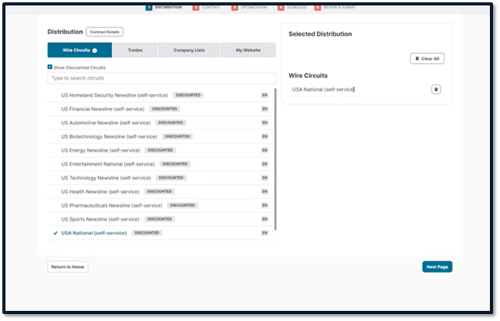
- Search USA National (self service) in the search bar to populate it as a Wire Circuit.
NOTE: Clients can request a different Wire Circuit based on their needs. USA National (self service) is the standard Wire Circuit used. If the client requires a different Wire Circuit (ex: only in Europe or Canada), EA must determine the price with Globe and confirm with the client.
- Select Trades based on Company Type or the company’s “About Me,” which can be found in the company’s press release.
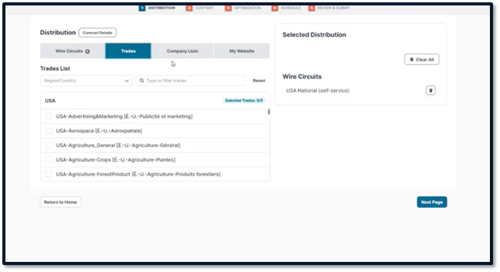
- The Company List is used only if a client has specific emails they want to send to.
- My Website is use only if a client wants the press release to post to their website.
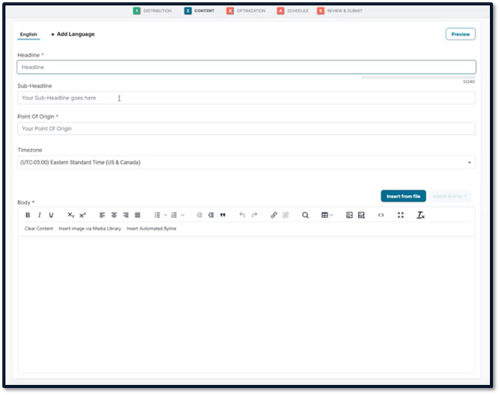
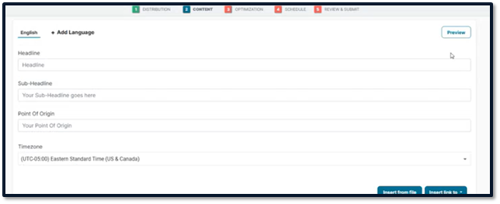
- Add the content of the press release on the Content page.
- Add Headline and Sub-Headline if applicable.
- Point of Origin: country or state used for press release.
- Add the body text of the press release.
- Add the contact information to the body of the press release.
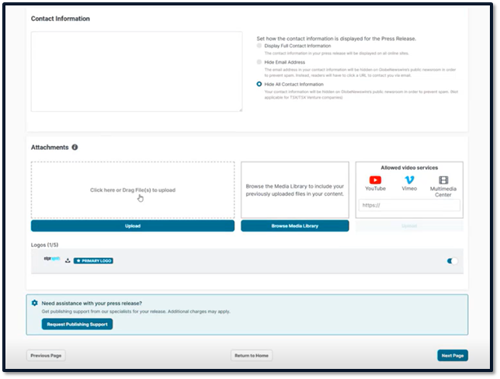
NOTE: If the client does not want their contact information listed publicly in the press release, add their contact information under Contact Information, and click “Hide Email Address” or “Hide All Contact Information.” This information may still be available through other outlets, but not through Globe Newswire.
- Any images or attachments should be added under Attachments.
- Add a title and caption for each image.
- Request Publish Support if additional support is needed from Globe Newswire.
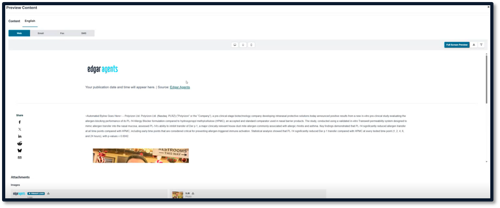
- Click “Preview” in the top right corner to view the proof of the press release.
- Review the proof of the press release.
- Download a PDF of the proof and save it as a Word file to provide to the client.
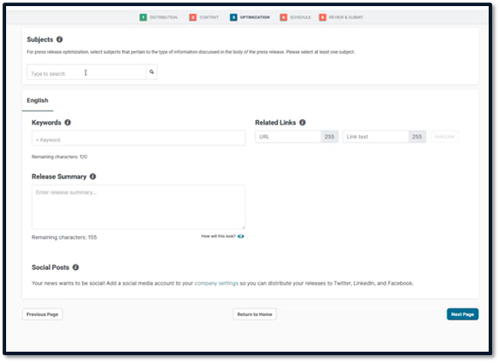
- Navigate to the Optimization page.
- Add keywords from the Subjects dropdown.
- Add Keywords if provided by the client.
- Include a Summary if requested by client.
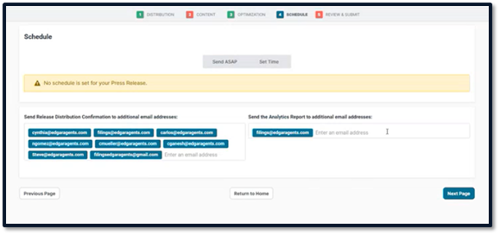
- Navigate to the Schedule page to send the press release.
- Select “Send ASAP” for immediate release.
- Select “Set Time” to schedule release for a later time.
- Navigate to the Review & Submit page.
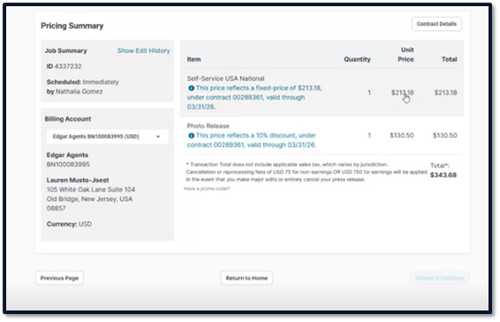
- Click “Calculate Pricing” once the press release has been reviewed.
NOTE: If the self service price is more than $213.18, check with the Accounting team prior to releasing.
Full Service
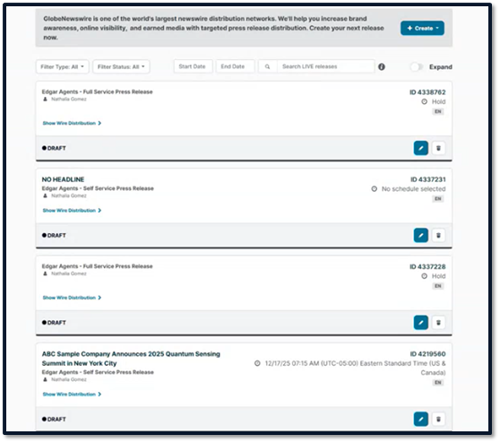
From the landing page, select the client you will be working on, and click “Create” to create a new press release.
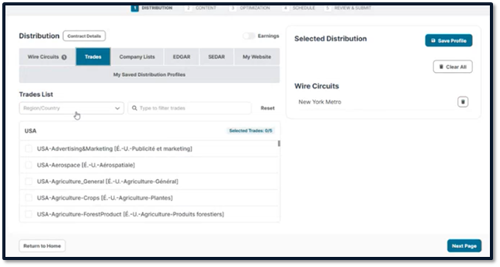
- Select Full Service
- Select New York Metro as the wire circuit for full-service press releases.
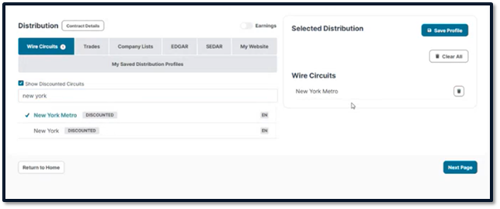
- Select trades applicable to the company.
- Toggle on the “Earnings” toggle if the press release is an Earnings Release.
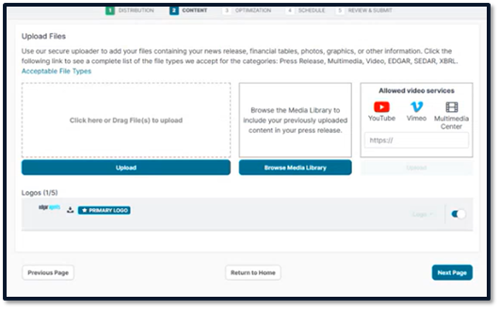
- Upload the document the client provided, as well as pictures and logo if needed.
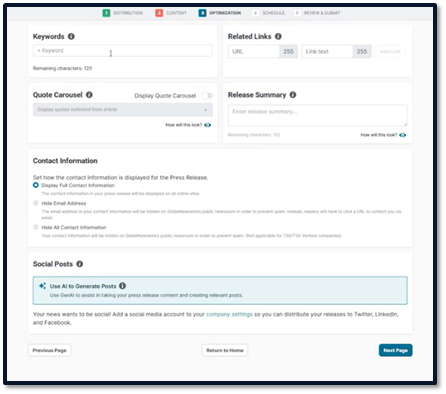
- Input keywords provided by client.
- Select contact information display.
NOTE: Hiding the client’s contact information is only applicable on Globe Newswire. All other platforms can see contact information.
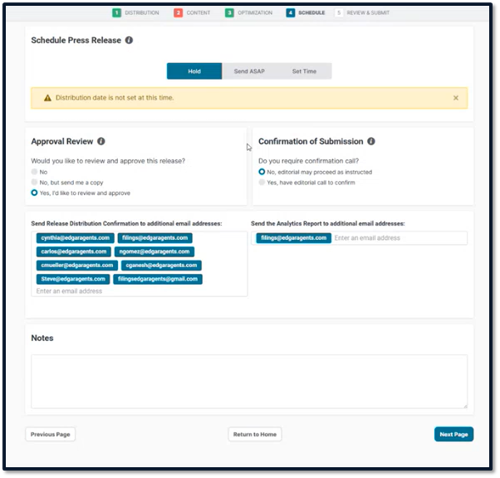
- Navigate to the Schedule Press Release page to send the press release to editorial for processing.
- Under Approval Review, always select, “Yes I’d like to review and approve.”
- Under Confirmation of Submission, always select, “No, editorial may process as instructed.”
- Ensure filings@edgargaents.com is included in the Release Distribution Confirmation and the Analytics Report.
- Add any additional notes if needed.
- Globe Newswire will call to approve details of the press release.
NOTE: USA National should only be selected for self-service, NOT full-service.
DMS Capture:
Add a new job and fill out necessary information.
- Client name.
- Job type: press release.
- Form type: press release.
- Choose department: EDGAR Only.
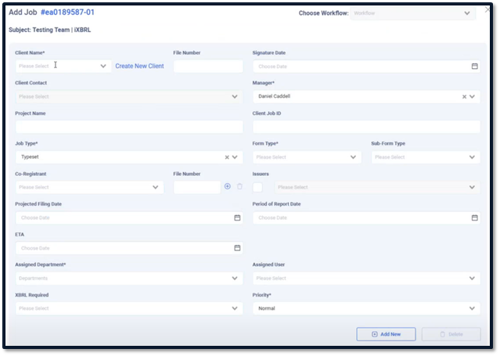
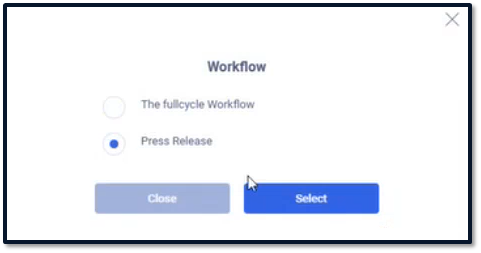
OR select the “Press Release” workflow to auto-populate the above information. The workflows are as follows:
- Press Release – Standard
- Press Release – Earnings
- Press Release – Other Distribution

Once all job information is input and the job is ready to begin, select “Start” under the Job Status.
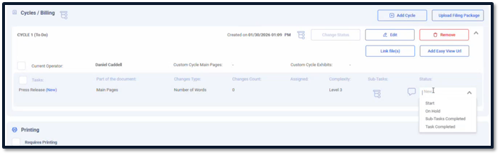
- Any additional Tasks can be added into the existing cycle. The Tasks are:
- Press Release – Additional Logo
- Press Release – Additional Distro Emails
- Image on Press Release
- Market Watch Upload
Click “Save.”
Release Number
The Release Number (Globe Newswire ID Number) must be inserted in project name.
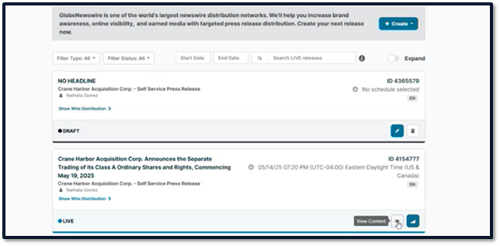
- Navigate to Globe Newswire and select a company.
- The ID Number can be found at the top right corner of the press release.
- Click “View Content” to see the circuits used, the word count, and the Pricing Summary.
Pricing Summary
The Pricing Summary must be recorded in DMS.
- Take a screenshot of the Pricing Summary on Globe Newswire for input into DMS.
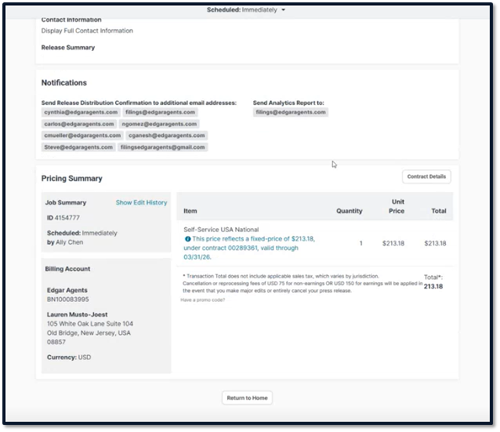
- Open the Job in DMS and add the screenshot of the Pricing Summary to the “Screenshot from Globe” section of the Job.

- Set the job to “Billing Review” once the press release is released.
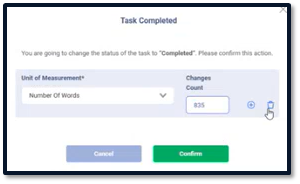
Add the press release word count to the cycle one the task is set to complete.
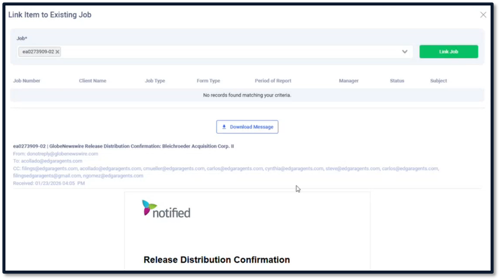
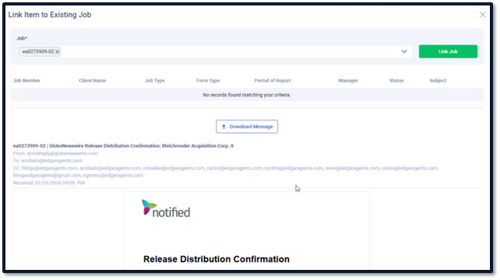
- The word count can only be added upon confirmation by Globe Newswire. Globe Newswire will send a confirmation email that can be accessed from the Production Inbox.
- Link the Globe Newswire confirmation email to the existing job.